
If you own a website, blog, or online business, understanding your audience is essential. That’s where Google Analytics setup guide comes in to rescue for beginners . It helps you track visitors, analyze their behavior, and make smarter decisions based on real data.
Whether you want to:
- Measure website traffic
- Track user engagement
- Improve conversions
- Optimize marketing campaigns
Google Analytics is one of the most powerful (and free) tools available.
This Google Analytics Setup Guide is designed specifically for beginners, so even if you’ve never used analytics before, you’ll be able to set everything up step by step.
TL;DR — Quick Summary
Setting up Google Analytics 4 takes about 15–20 minutes. Here’s what you’ll do:
- Create a free Google account and visit analytics.google.com
- Create a GA4 property and fill in your website details
- Set up a data stream (web) and copy your Measurement ID (G-XXXXXXXX)
- Add the tracking code to your site — via Google Tag Manager, a plugin (WordPress), or manual code
- Verify the setup using GA4’s real-time reports and explore your first data within 24–48 hours
Table of Contents:
- What is Google Analytics-and Why Do You Need It?
- Why You Need Google Analytics
- Step-by-Step Google Analytics Setup Guide
- GA Setup for WordPress
- Understanding GA4 Dashboard
- Google Analytics for Beginners: Key Metrics Explain
- Bonus: Quick Copy Checklist (for your blog or notes)
- FAQs
- Conclusion
What is Google Analytics-and Why Do You Need It?
If you’re running a website whether it’s a blog, an online store, or a business landing page you are essentially flying blind without Google Analytics. It is the world’s most widely used web analytics platform, and the best part? It’s completely free.
Google Analytics (GA4) is the current version, and it replaced Universal Analytics in July 2023. GA4 is built around an event -based data model, which gives you much more flexibility to track user behavior across your entire website and app
Why You Need Google Analytics
Before diving into how to set up Google Analytics, it’s important to understand why it matters.
- Understand Your Audience
Know where users come from, their location, device, and interests.
- Measure Website Performance
Track page views, bounce rates, and session duration.
- Improve Marketing ROI
Identify which campaigns bring the best results.
- Track Conversions
Monitor sales, leads, downloads, and sign-ups.
Step-by-Step Google Analytics Setup Guide
Step 1: Create a Google Analytics Account
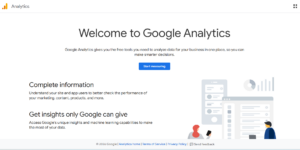
Visit the Google Analytics homepage
- Go to the Google Analytics website
- Click on Start Measuring
- Sign in with your Google account
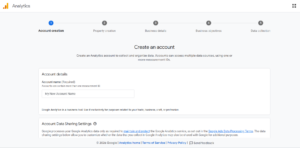
- Enter your Account Name
- Configure data-sharing settings
- Click Next
Open your browser and navigate to analytics.google.com. You’ll need a Google account (Gmail works). If you already have one, click “Start measuring”.
Enter your account name
The account name is just for your reference — it could be your company name or project name. This is the top level of Google Analytics hierarchy (Account → Property → Data Stream).
Step 2: Create a GA4 Property
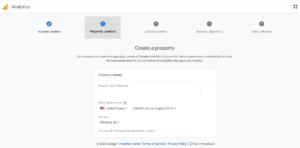
A property represents your website (or app). You’ll need to provide:
- Property name (e.g., “My Blog” or “Company Website”)
- Reporting time zone — always set this to your local timezone for accurate data
- Currency — relevant if you’re tracking e-commerce conversions
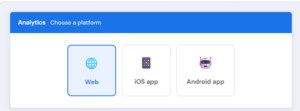
Step 3: Set Up a Data Stream
This step connects your website to Google Analytics.
- Choose Web
- Enter your Website URL
- Add a Stream Name
- Click Create Stream
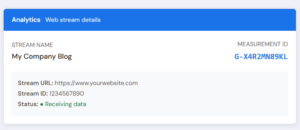
You’ll now see your Measurement ID (e.g., G-XXXXXXX).
Step 4: Add the Tracking Code to the Website
This is the most important part of how to set up Google Analytics.
Option 1: Manual Installation
- Copy the global site tag (gtag.js)
- Paste it into the <head> section of your website
Option 2: Using Google Tag Manager
- Create a Tag in Tag Manager
- Choose GA4 Configuration
- Enter your Measurement ID
- Set trigger to All Pages
GA Setup for WordPress
WordPress powers over 40% of all websites on the internet. If your site runs on WordPress, you don’t need to touch any code. Here’s the easiest method:
Method 1: Using a Plugin
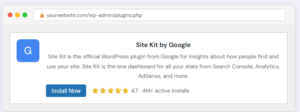
Install GA4 via the Site Kit by Google Plugin
- Log in to your WordPress admin dashboard (yourdomain.com/wp-admin)
- Go toPlugins → Add New Plugin and search for”Site Kit by Google”
- ClickInstall NowthenActivate
- Follow the setup wizard — sign in with the Google account linked to your GA4
- Select your GA4 property from the dropdown and clickConnect Analytics
- Site Kit automatically adds the tracking code — no copy-pasting required!
Method 2: Manual Setup
- Go to Appearance → Theme Editor
- Paste tracking code in header.php
- Save changes
Pro Tip: Plugins are recommended for beginners because they simplify tracking and reduce errors.
Verify Your Google Analytics Setup
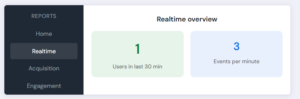
Check the Real-Time overview
How to Check:
- Go to Google Analytics dashboard
- Click Realtime Report
- Visit your website
If you see active users, your setup is successful.
Understanding GA4 Dashboard
Once your account is set up, here’s what you’ll see:
1. Realtime Report
Shows live visitors on your site.
2. Reports Section
Includes:
- Acquisition (traffic sources)
Find it at REPORTS-ACQUISITION-OVERVIEW. This tells you where your traffic is coming from- organic search,social media,direct visit, referrals, email campaigns.
- Engagement (user behavior)
This shows you which pages are getting the most views and how long visitors spend
on each. Sort by Views to find your top content, or by Average Engagement Time to see what people actually read vs. bounce off of
- Demographic overview
Under Reports → User → User Attributes → Demographics, you’ll find age, gender, location, and device breakdowns. This helps you understand who your audience actually is — which can shape your content and marketing strategy significantly.
Google Analytics for Beginners: Key Metrics Explained
Understanding metrics is crucial for beginners.
- Users
Total number of visitors.
- Sessions
Number of visits.
- Bounce Rate
Percentage of users who leave quickly.
- Average Engagement Time
How long users stay on your site.
- Conversions
Completed goals like purchases or signups.
Link Google Analytics with Other Tools
To maximize results, integrate GA with other platforms.
- Google Search Console
Track SEO performance.
- Google Ads
Measure paid campaign ROI.
- Google Tag Manager
Advanced tracking setup.
Future of Google Analytics (GA4)
GA4 is designed for privacy-first tracking and AI-driven insights.
Key Trends:
- Cookieless tracking
- Predictive analytics
- Cross-platform tracking
- AI-based insights
Learning GA4 now gives you a strong advantage in digital marketing.
Bonus: Quick Copy Checklist (for your blog or notes)
Basic Setup
- Create Google Analytics account
- Set up GA4 property
- Configure time zone & currency
Tracking Setup
- Add tracking code (gtag.js or GTM)
- Verify using Realtime report
WordPress Setup
- Install Site Kit / MonsterInsights
- Connect GA4 property
Events & Conversions
- Enable enhanced measurement
- Track scrolls, clicks, downloads
- Mark conversions
Optimization
- Link Search Console
- Filter internal traffic
- Review reports weekly
FAQs
Q. Is Google Analytics free?
Yes, Google Analytics 4 (GA4) is completely free for most websites. There is a paid enterprise version called Google Analytics 360, but the standard version handles millions of sessions per month at no cost.
Q. How long does it take to see data in Google Analytics?
Real-time data appears within minutes. Standard reports populate within 24–48 hours. Attribution and some Advanced reports can take up to 72 hours to show accurate numbers.
Q. Can I use Google Analytics on multiple websites?
Yes. One Google account can have multiple GA4 properties — one per website. You can switch between them easily from the Analytics interface.
Q. Does Google Analytics slow down my website?
The impact is minimal. The GA4 script loads asynchronously, meaning it won’t block your page from rendering. Using Google Tag Manager can also help minimize performance impact.
Q. Do I need a cookie banner if I use Google Analytics?
If your website serves visitors from the EU (GDPR regions), you may need to obtain user consent before loading GA4. This depends on your specific setup and whether GA4 collects personal data. Consult a legal professional for your specific situation.
Conclusion
This Google Analytics Setup Guide provides everything you need to get started, from creating an account to tracking conversions and optimizing performance.
For beginners, the key is to:
- Start simple
- Focus on important metrics
- Continuously learn and improve
Once you understand how to set up Google Analytics, you unlock powerful insights that can transform your website’s performance and business growth.