
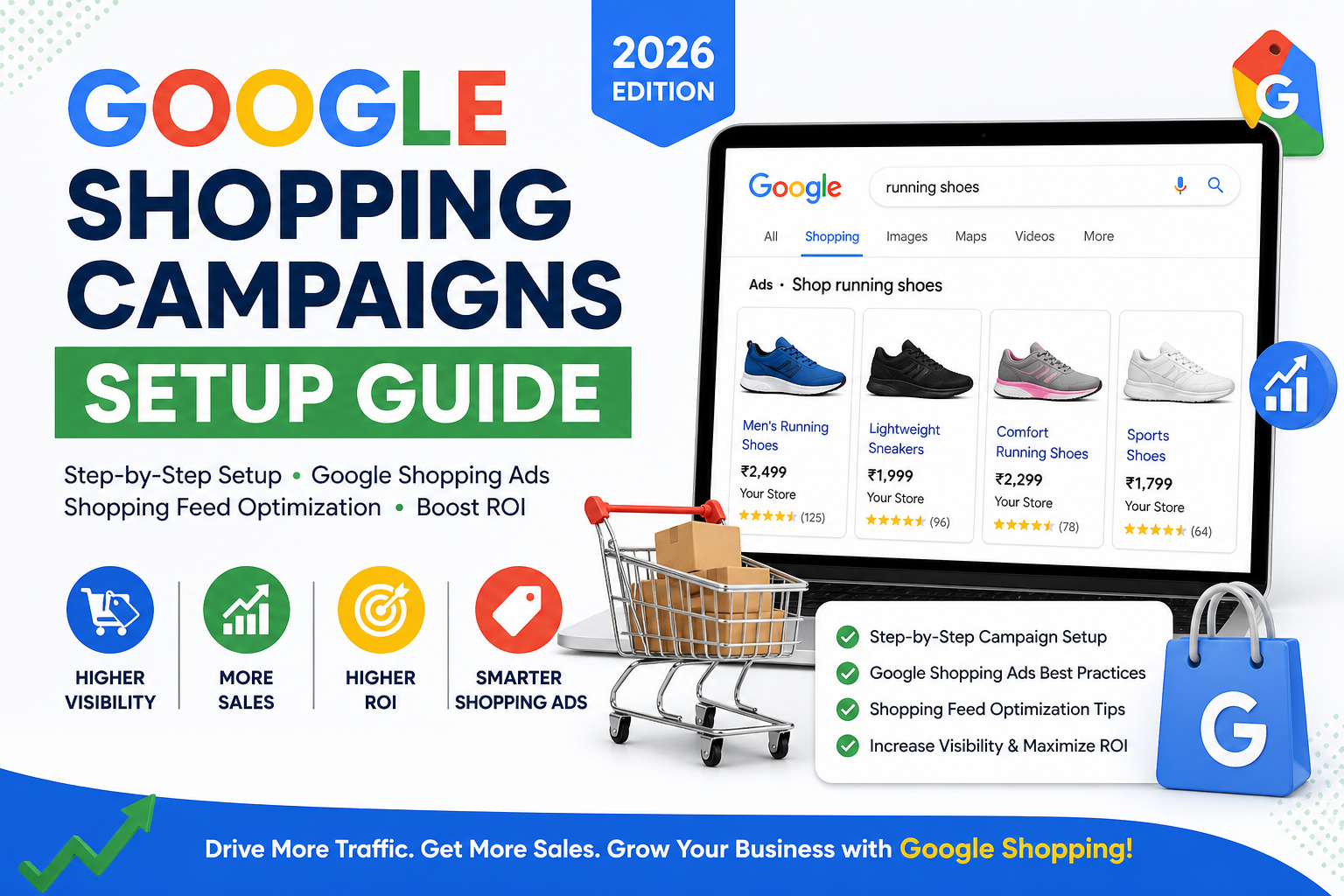
If you run an eCommerce business in 2026, visibility on Google is no longer optional — it is one of the biggest drivers of online sales. And among all advertising formats available today, Google Shopping campaigns remain one of the most effective ways to put your products directly in front of high-intent buyers.
Unlike traditional text ads, Google Shopping ads display product images, prices, ratings, and store details before a customer even clicks. This creates a stronger buying intent from the start and helps shoppers make faster purchase decisions. Whether someone is searching for shoes, electronics, skincare products, or home decor, Shopping ads dominate the top section of search results and attract highly qualified traffic.
However, success with Google Shopping campaigns is not just about launching ads. Your campaign performance depends heavily on the quality of your product feed, campaign structure, bidding strategy, and ongoing shopping feed optimization. Even small improvements in product titles, descriptions, or images can significantly impact clicks, conversions, and return on ad spend (ROAS).
TL;DR
Google Shopping campaigns allow you to showcase products directly in search results.
- You need a Google Merchant Center account + Google Ads account.
- Upload and optimize your product feed carefully.
- Link Merchant Center with Google Ads.
- Create a Shopping campaign and set bids, budget, and targeting.
- Focus heavily on shopping feed optimization to improve visibility and conversions.
- Monitor performance and refine regularly for best results.
Table of Contents:
- What Are Google Shopping Campaigns?
- Why Google Shopping Campaigns Are Worth Your Attention
- Benefits of Google Shopping Campaigns
- Prerequisites for Setup
- Step-by-Step Google Shopping Campaign Setup
- Advanced Shopping Feed Optimization Technique
- Common Mistakes to Avoid
- Performance Tracking & Metric
- FAQs
- Conclusion
What Are Google Shopping Campaigns?
Google Shopping campaigns are a type of advertising that allows retailers to promote their products using product data instead of keywords.
These ads appear in:
- Google Search results
- Google Shopping tab
- YouTube
- Display Network
Each ad includes:
- Product image
- Title
- Price
- Store name
- Reviews
Why-Google-Shopping-Campaigns-Are-Worth-Your-Attention
If you sell physical products online, there is no more visually powerful ad format available to you than Google Shopping campaigns. Unlike text-based search ads, Google Shopping ads show your product image, title, price, and store name right at the top of Google Search results — before the user has even clicked anything. This means buyers are pre-qualified before they land on your site. They already know what it costs. They’ve already seen what it looks like
The result? Higher click quality, better conversion rates, and often a lower cost per acquisition compared to standard search campaigns.
But here’s the catch: Google Shopping campaigns are not as straightforward to set up as regular search ads. They don’t use keywords the way you’d expect. Instead, they rely entirely on your product data — your Shopping feed — to determine when and where your ads show up. This makes Shopping feed optimization the single most important lever you can pull to improve performance.
This guide covers everything: how to create your Merchant Center account, how to build and optimize your feed, how to structure your campaigns, and how to make your Google Shopping ads as profitable as possible.
Benefits of Google Shopping Campaigns
1. High Purchase Intent
Users searching for products are already interested in buying.
2. Better Visibility
Shopping ads appear above text ads, increasing exposure.
3. Automated Targeting
Google uses your product data instead of manual keywords.
4. Improved ROI
With proper shopping feed optimization, campaigns often deliver better ROI than traditional ads.
Prerequisites for Setup
Before creating Google Shopping campaigns, ensure you have:
1. Google Merchant Center Account
This is where your product data lives.
2. Google Ads Account
Used to create and manage campaigns.
3. Product Feed
A structured file containing product information such as:
- Title
- Description
- Price
- Availability
- Image URL
4. Website Requirements
- Secure checkout (HTTPS)
- Clear refund and shipping policies
- Accurate product information
Step-by-Step Google Shopping Campaign Setup
Step 1: Create and Verify Your Google Merchant Center Account
Google Merchant Center (GMC) is the platform that hosts your product data. Before you can run any Google Shopping campaigns, you need a verified and active Merchant Center account.
Here’s how to get started:
- Go to merchants.google.com and sign in with your Google account.
- Enter your business name, country, and timezone.
- Verify and claim your website URL. You can do this via Google Tag Manager, Google Analytics, an HTML tag added to your site’s <head>, or by uploading an HTML file to your server root.
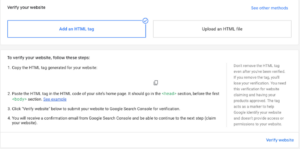
4.Once verified, ensure your website complies with Google’s policies — including a clear returns policy, contact information, and secure checkout (HTTPS).
This step is non-negotiable. Without a verified GMC account, you cannot run Google Shopping ads at all.
Step 2: Build Your Product Feed — The Foundation of Everything
Your product feed is a structured data file (usually a Google Sheet, XML, or CSV) that tells Google everything about your products: what they are, how much they cost, where to find them, and how to categorize them.
Essential Feed Attributes
id — A unique identifier for each product. Keep it consistent and never change it.
title — The product title is the most important attribute in your feed for search relevance. Include your primary keyword, brand, size, color, and model where applicable. For example, instead of “Running Shoe,” write “Nike Air Zoom Pegasus 41 Men’s Running Shoe — Blue, Size 10.”
description — A detailed, keyword-rich description that accurately represents the product. This helps Google understand what the product is and when to surface it.
link — The direct URL to the product page on your site.
image link — A high-quality product image URL. Use clean, white-background images for better performance in Google Shopping ads.
price — Must match the price on your website exactly. Mismatches will get your products disapproved.
availability — In stock, out of stock, or preorder.
brand — The product’s brand name.
gtin / mpn — Global Trade Item Number or Manufacturer Part Number. Including GTINs significantly improves your eligibility and performance in Google Shopping campaigns.
google_product_category — Use Google’s official taxonomy to categorize your products correctly.
condition — New, refurbished, or used.
Step 3: Optimize Your Product Feed
This is where shopping feed optimization becomes critical.
Best Practices:
- Product Titles
- Include primary keywords
- Keep it descriptive and clear
- Example:
“Men’s Running Shoes – Lightweight, Breathable, Size 10”
- Product Descriptions
- Use relevant keywords naturally
- Highlight features and benefits
- High-Quality Images
- White background preferred
- No watermarks or logos
- Accurate Pricing
- Ensure consistency between feed and website
- Product Categories
- Use Google’s predefined categories for better targeting.
Step 4: Link Google Merchant Center to Google Ads
Once your Merchant Center account is verified and your feed is live, you need to connect it to your Google Ads account.
- In Google Merchant Center, go to Settings > Linked accounts.
- Click Google Ads and enter your Google Ads Customer ID.
- In your Google Ads account, approve the link request under Tools & Settings > Linked accounts.
This connection is what allows Google Ads to pull product data from your feed and serve it as Google Shopping ads.
Step 5: Create Your First Google Shopping Campaign
Now you’re ready to set up the actual campaign in Google Ads.
- In Google Ads, click New Campaign.
- Choose your campaign goal. For most ecommerce advertisers, Sales is the right choice.
- Select Shopping as the campaign type.
- Choose your linked Merchant Center account and select the country of sale.
- Select Standard Shopping (not Performance Max, which we’ll discuss separately).
Step 6: Choose Campaign Type
Standard Shopping Campaign
- Manual control
- Better for beginners
Performance Max Campaign
- Automated across all Google channels
- AI-driven optimization
Step 7: Set Budget and Bidding
Budget Tips:
- Start small (₹500–₹2000/day)
- Scale based on performance
Bidding Options:
- Manual CPC
- Enhanced CPC
- Target ROAS (recommended for scaling)
Step 8: Configure Targeting
- Location targeting
- Device targeting
- Audience segmentation
Step 9: Launch Campaign
Once everything is set:
- Review campaign
- Publish
- Monitor performance daily
Advanced Shopping Feed Optimization Techniques
1. Use Negative Keywords
Prevent irrelevant traffic.
2. Segment Products
Group by:
- Category
- Brand
- Price range
3. Optimize Product Titles for SEO
Structure:
Brand + Product Type + Key Features + Size/Color
4. Add Custom Labels
Helps with bidding strategies:
- Best sellers
- Seasonal items
- High-margin products
5. A/B Testing
Test:
- Titles
- Images
- Pricing strategies
Common Mistakes to Avoid
- Ignoring feed quality — Your Google Shopping ads are only as good as your product data. Poor titles, missing attributes, and bad images will tank performance before bidding even comes into play.
- Setting and forgetting — Shopping campaigns require active management. Without regular negative keyword work and feed updates, performance decays over time.
- Bidding the same on all products — Not all products have the same margins or conversion rates. Segment your product groups and bid accordingly.
- Skipping GTINs — Many advertisers skip Global Trade Item Numbers to save time. This limits your eligibility for Google Shopping ads and can reduce impression volume significantly.
- Mismatched prices — If the price in your feed doesn’t match what’s shown on your landing page, Google will disapprove of those products. Always sync your feed immediately after price changes.
Performance Tracking & Metrics
Key Metrics to Monitor:
- CTR (Click-through rate)
- CPC (Cost per click)
- Conversion rate
- ROAS (Return on ad spend)
Tools:
- Google Ads dashboard
- Google Analytics
- Merchant Center reports
FAQs
- What are Google Shopping campaigns?
Google Shopping campaigns are product-based ads that display items with images, prices, and store details in search results.
- How much does it cost to run Google Shopping ads?
Costs vary, but beginners can start with ₹500–₹2000 per day depending on competition and goals.
- What is shopping feed optimization?
It is the process of improving product data (titles, descriptions, images) to enhance visibility and performance in Shopping ads.
- Do I need keywords for Google Shopping campaigns?
No, Google uses your product feed instead of keywords for targeting.
- What is the difference between Standard Shopping and Performance Max?
Standard Shopping gives manual control, while Performance Max uses AI to automate campaigns across Google channels.
Conclusion:
Google Shopping campaigns are one of the highest-ROI advertising channels available for ecommerce businesses — but only when done right. The technical foundation (Merchant Center, feed, tracking) must be solid before any bidding or campaign strategy can work properly. Shopping feed optimization is not a one-time task; it’s an ongoing discipline that rewards advertisers who treat their product data as seriously as their ad copy.
Start lean, gather data, segment thoughtfully, and optimize relentlessly. That’s the formula.
Whether you’re a beginner or scaling an eCommerce store, mastering Google Shopping ads can significantly boost your visibility, traffic, and revenue.
Book a free counselling session with an academic counsellor for our AI-powered Niche Specific Digital Marketing course.