
Picture this: You’ve poured months into creating amazing content. Your blog posts are genuinely helpful, your products are incredible, and your website design looks fantastic. Yet somehow, you’re not ranking on Google, and your website feels invisible to search engines.
Here’s the painful truth—none of that matters if Google can’t properly crawl and index your website.
This is where technical SEO comes in. Unlike on-page SEO (your keywords, content quality) or off-page SEO (backlinks, brand mentions), technical SEO is the invisible foundation that makes everything else possible. It’s about ensuring search engines can actually find your website, understand your content, and rank you fairly.
Think of it this way: If your website were a restaurant, on-page SEO would be your amazing food, off-page SEO would be word-of-mouth marketing, but technical SEO? That’s making sure the front door is unlocked and there’s a clear path from the street to your dining room.
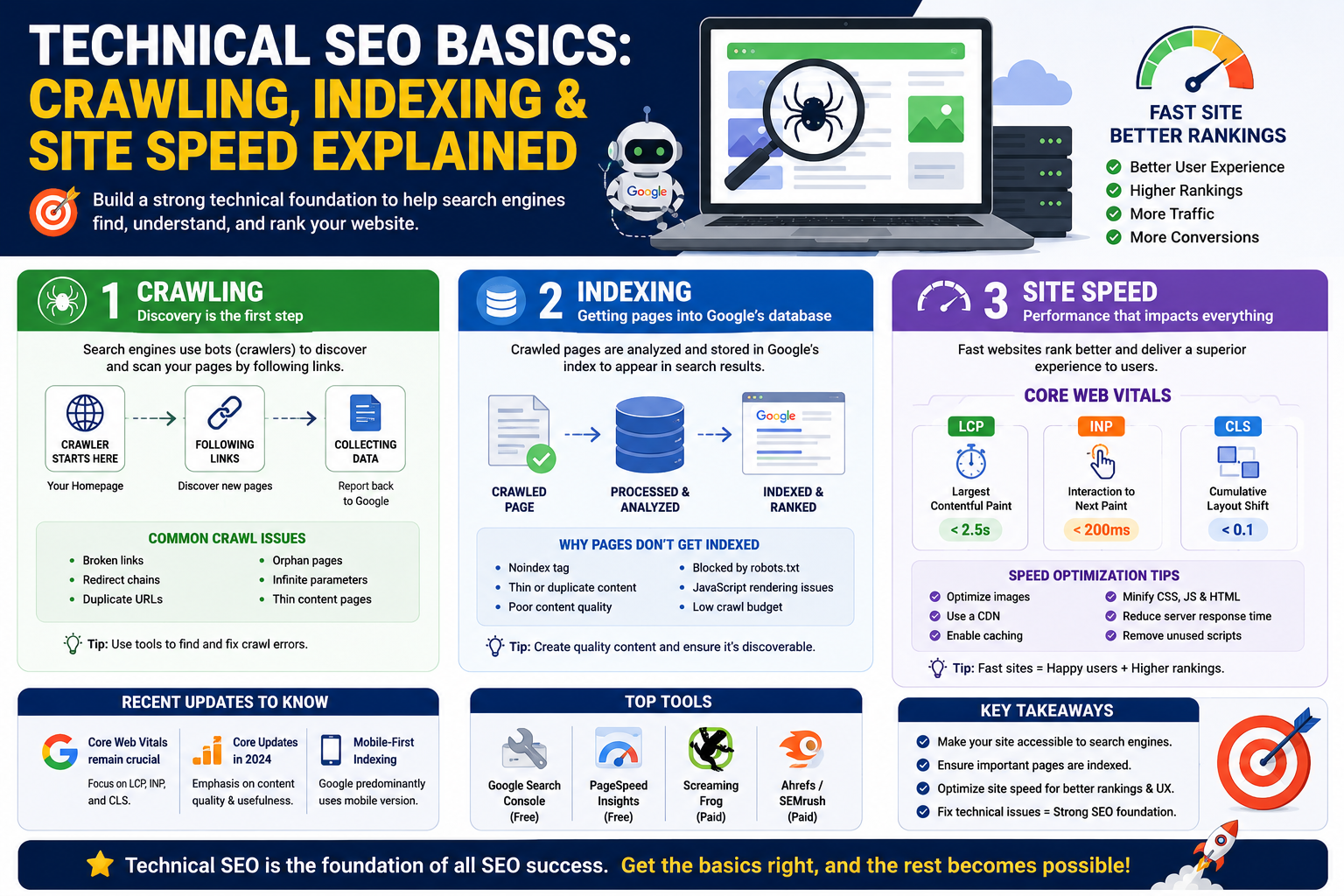
In this guide, we’re breaking down the three pillars of technical SEO that matter most: crawling, indexing, and site speed. We’ll explore what they are, why they matter, recent updates you need to know about, and most importantly—how to fix them.
TLDR
- Technical SEO = Making your website accessible and understandable to search engines
- Crawling = Search engines discovering and following links on your site
- Indexing = Search engines storing your pages in their database for ranking
- Site Speed = How fast your pages load (critical ranking factor + user experience)
- Recent Updates: Google’s Core Web Vitals remain crucial, Core Updates in 2024 focused on content quality, and mobile-first indexing is now the standard
- The Action Items: Fix crawl errors, submit sitemaps, improve Core Web Vitals, reduce server response time, optimize images
- The Bottom Line: Good technical SEO won’t guarantee rankings, but poor technical SEO will guarantee you won’t rank
Table of Contents
- What is Web Crawling Explained?
- Indexing—Getting Your Pages into Google’s Database
- Site Speed—The Performance That Impacts Everything
- FAQ
- Conclusion
What is Web Crawling Explained?
What Exactly Happens When Google “Crawls” My Website?
Imagine Google sends out digital robots called “crawlers” (or “spiders,” or “bots”—they have many names). These crawlers start at your homepage and begin following links like a human would, but way, way faster.
Here’s the journey:
- The crawler lands on your homepage and reads your HTML, CSS, and JavaScript
- It discovers links to other pages on your site
- It follows those links and repeats the process
- It collects data about your site structure, content, and technical setup
- It reports back to Google with all this information
The entire process takes milliseconds, but Google doesn’t crawl every page infinitely. Each website gets an allocated “crawl budget”—essentially, the number of pages Googlebot will crawl within a set timeframe.
Why Should I Care About My Crawl Budget?
Because if your site has crawl issues, you might be “wasting” your budget on pages that shouldn’t be crawled, while important content pages remain undiscovered.
Here are some common crawl budget wasters:
- Infinite parameters (like sorting or filtering options that create duplicate URLs)
- Redirect chains (Page A → Page B → Page C instead of going directly A → C)
- Orphaned pages (pages with no internal links pointing to them)
- Thin content pages (category pages with barely any content)
- Parameter-heavy URLs (session IDs, tracking codes, etc.)
Fixing these is like cleaning out your garage—suddenly you have space for what actually matters.
How Do I Check If Google Can Actually Crawl My Site?
Here are your best tools:
- Google Search Console (Free, essential)
Go to Crawl Stats to see crawl requests over time
Check the “Coverage” report for blocked pages
Look for crawl errors
- Google Mobile-Friendly Test
Submit your URL and see if Google can render your site
Identifies JavaScript issues that prevent crawling
- Screaming Frog (Desktop tool, around $99/year)
Crawls your entire site like Google does
Identifies broken links, redirects, duplicate content
- Website Audits in SEMrush or Ahrefs
Comprehensive technical audits
Identifies crawl issues automatically
What’s This About Robots.txt Files I Keep Hearing About?
Your robots.txt file is like a set of instructions you leave at your website’s front door for search engines. It says things like “yes, crawl this folder” or “no, don’t waste time on this section.”
A basic example:
User-agent: *
Disallow: /admin/
Disallow: /private/
Allow: /public/
Sitemap: https://yoursite.com/sitemap.xml
Common mistakes:
- Accidentally blocking your entire site from crawlers (we’ve seen this happen!)
- Over-using Disallow (just because you can block something doesn’t mean you should)
- Not updating it when you restructure your site
Pro tip: Check your robots.txt by going to yoursite.com/robots.txt in your browser.
Indexing—Getting Your Pages into Google’s Database
Wait, Crawling and Indexing Are Different Things?
Yes! And this is where many people get confused.
Crawling = Google discovers and reads your pages
Indexing = Google adds those pages to its searchable database
Think of it like a library: A librarian (crawler) finds all the books, but indexing is when those books actually get catalogued and put on the shelf where people can search for them.
It’s totally possible for a page to be crawled but NOT indexed. In fact, this happens constantly.
What Reasons Prevent Pages from Being Indexed?
A: Plenty! Here are the main culprits:
- You Told Google Not To Index It
<meta name=”robots” content=”noindex”>
Or blocking it in robots.txt
Sometimes this is correct (thank you, thank you pages), but often it’s accidental
- Thin or Duplicate Content
Duplicate content across multiple URLs
Very short pages with minimal substance
Near-identical pages competing with each other
- Poor Content Quality
Especially relevant after core updates
Thin pages with little original value
AI-generated content with no human input
- Noindex Tag from Someone Else
Sometimes WordPress plugins or themes add accidental noindex tags
Check your theme settings
- JavaScript Rendering Issues
JavaScript-heavy sites where content isn’t in the HTML
Google can render JavaScript, but sometimes configuration issues prevent it
- Crawl Budget Issues
Your site has so many pages that important ones get crawled out
More common on very large sites
- URL Structure Problems
URLs with parameters that seem suspicious
Session IDs or tracking codes that make Google think the content is duplicate
How Do I Know If My Pages Are Indexed?
Use the site: operator in Google Search:
site:yourwebsite.com
This shows you all pages Google has indexed from your domain. If you have 100 pages but only 30 show up, you’ve got an indexing problem.
Also, in Google Search Console:
- Coverage report shows: Indexed pages, Excluded pages, Error pages
- Index Coverage tells you exactly what’s happening with each URL
What Should I Do If My Important Pages Aren’t Indexed?
Follow this checklist:
- Check if you’ve blocked them (robots.txt, meta robots, XML sitemaps)
- Ensure they have quality content (minimum 300+ words for most pages, original and valuable)
- Make sure they’re linked from other pages on your site
- Check for JavaScript issues (use Google Search Console’s URL Inspection tool)
- Submit to Google Search Console (Coverage report → Excluded → Request indexing for specific pages)
- Check for noindex tags (look at page source code for <meta name=”robots” content=”noindex”>)
- Wait a bit and resubmit your sitemap (sometimes Google takes time)
Also, remember: Not every page needs to be indexed. Login pages, thank you pages, duplicate content pages—these shouldn’t be indexed. Focus on making sure your valuable content is discoverable.
Site Speed—The Performance That Impacts Everything
Why Does Site Speed Matter So Much for SEO?
Because it affects everything:
- Ranking Factor – Google explicitly stated that page speed impacts rankings
- User Experience – Slow sites have higher bounce rates (people leave before your content even loads)
- Crawl Budget – Slow sites waste crawl budget because crawlers move on
- Conversions – Every second of delay = lost conversions and revenue
- Mobile Users – Especially critical since Google uses mobile-first indexing
What’s This Core Web Vitals Thing Everyone Talks About?
Google simplified site speed into three metrics called Core Web Vitals:
- LCP (Largest Contentful Paint)
- What it means: How long until the main content appears on screen
- Target: Less than 2.5 seconds
- Why it matters: Users want to see something quickly
- Common causes of slow LCP: Large images, slow server response, render-blocking resources
- FID (First Input Delay) — Recently replaced with INP
- What it means: How responsive your site is when users interact with it (click, scroll, type)
- Target: Less than 100ms (now, Google uses INP—Interaction to Next Paint, target <200ms)
- Why it matters: A responsive site feels faster and more “native”
- Common causes: Heavy JavaScript, long tasks blocking the main thread
- CLS (Cumulative Layout Shift)
- What it means: How much does your page layout unexpectedly jump around while loading
- Target: Less than 0.1
- Why it matters: Nothing’s more annoying than clicking a button and having it move
- Common causes: Ads loading late, images without dimensions, embedded content without aspect ratios
Think of these like a health check for your site. All three need to be good.
How Do I Actually Measure My Site Speed?
Multiple tools, each telling you something slightly different:
- Google PageSpeed Insights (Free)
Shows Core Web Vitals
Specific optimization recommendations
Field data (real user behavior) + Lab data (simulated)
- Google Search Console (Free)
Core Web Vitals report
Shows pages with poor metrics
Segment by desktop/mobile
- WebPageTest.org (Free)
Waterfall charts showing exactly when things load
Advanced metrics most tools don’t show
- GTmetrix (Free tier available)
Beautiful visualizations
Identifies performance bottlenecks
What’s the Fastest Way to Improve Site Speed?
In order of impact:
High Impact (Do These First):
- Compress and optimize images (biggest performance killer)
- Use modern formats (WebP instead of PNG)
- Resize to actual display dimensions
- Use tools like TinyPNG or ImageOptim
- Reduce server response time
- Upgrade hosting (if you’re on shared hosting, consider VPS or cloud)
- Use a CDN (Content Delivery Network like Cloudflare—it’s free and makes a difference)
- Optimize database queries
- Minimize JavaScript/CSS
- Remove unused JavaScript
- Defer non-critical JavaScript
- Inline critical CSS
Medium Impact:
- Enable compression (GZIP, Brotli)
- Browser caching (tell browsers to cache static files)
- Lazy load images (load only when user scrolls into view)
- Remove render-blocking resources
- Preload critical fonts
I’m on WordPress. What’s the Easiest Speed Fix?
Three words: Get a caching plugin.
- WP Super Cache (free)
- W3 Total Cache (free)
- LiteSpeed Cache (free)
- WP Rocket
A caching plugin alone can improve your metrics by 20-40%. It works by storing a static HTML version of your page so WordPress doesn’t have to rebuild it every time someone visits.
After caching, optimize your images (Smush plugin is great). After that, you can do the fancy stuff.
FAQ
1. What is technical SEO?
Technical SEO refers to optimizing a website’s infrastructure so search engines can efficiently crawl, index, and rank its pages. It includes elements such as site speed, XML sitemaps, mobile usability, structured data, and crawlability.
2. What is the difference between crawling and indexing?
Crawling is the process by which search engine bots discover and scan web pages by following links. Indexing happens after crawling and involves storing those pages in a search engine’s database so they can appear in search results.
3. Why are some pages crawled but not indexed?
Pages may be crawled but not indexed due to poor content quality, duplicate content, accidental noindex tags, rendering issues, weak internal linking, or because Google considers them low-value pages.
4.What is a robots.txt file?
A robots.txt file is a text file placed in your website’s root directory that tells search engine crawlers which sections of your site they are allowed or not allowed to access.
5.Is site speed a ranking factor?
Yes. Google considers page speed and Core Web Vitals as ranking signals. Faster websites generally provide a better user experience, which can improve rankings, engagement, and conversions.
Conclusion
So here’s the thing about technical SEO—it’s not glamorous. It doesn’t involve the latest AI tools or viral content tactics. But it’s absolutely foundational.
You can’t build a successful SEO strategy on a broken technical foundation. It’s like trying to build a skyscraper on cracked concrete.
Technical SEO won’t rank you #1 for “best pizza in New York.” But it will make sure Google can actually find your pizza restaurant online. And without that foundation, nothing else matters.
The good news? Most of the technical SEO improvements you make will also improve your user experience. Faster pages, better mobile experience, clearer site structure—these help both humans and search engines.